
SU SFTP Flow Check (PublicIP: Filestash & SFTP | Private: SFTP)
Purpose
To verify the operational status of each configured SWIFT User (SU) by uploading a test message through the supported SFTP channel and validating successful message processing.
Scope
This procedure covers the validation of the following SWIFT Users and their supported message types.
| SWIFT User | Supported Message Type(s) |
|---|---|
| SU3 | MT |
| SU4 | CorpFileActSnF, MT, MX |
| SU5 | MT |
| SU6 | MT |
| SU7 | MT |
| SU8 | CorpFileActSnF, MT, MX |
| SU9 | MT |
| SU10 | CorpFileActRT, CorpFileActSnF, GenericFileAct, MX |
| SU11 | MT |
| SU14 | CBPR Translation |
Prerequisites
Before performing the validation, ensure the following:
- Public SFTP access is available through FileZilla or FileStash.
- Valid SWIFT User (SU) credentials are available.
- Test message files are available.
- Refer to the SWIFT Alliance Access – SFTP-Based Message Delivery Guide for connection details.
Test Procedure
Method 1 – Using FileZilla
Step 1 – Establish SFTP Connection
Configure the SFTP connection using the following parameters:
| Parameter | Value |
|---|---|
| Protocol | SFTP (SSH File Transfer Protocol) |
| Hostname | d1z.netlinksc.com or 109.68.167.226 |
| Port | 8221 |
| Username | swiftuserX (e.g., swiftuser5, swiftuser8, swiftuser9) |
| Password | Assigned password |
Click Connect.

Expected Result
Connection to the selected SWIFT User (SU) is established successfully.
Step 2 – Navigate to the Required Message Type
After successful login, browse to the required message type.
Examples:
- MT
- MX
- CorpFileActSnF
- CorpFileActRT
- GenericFileAct
Each message type contains the following directories:
- fromswift
- sample
- toswift
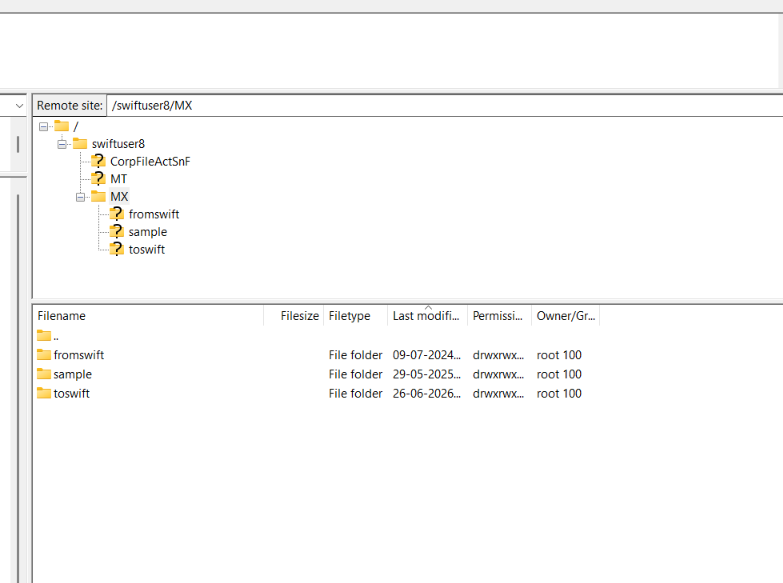
Expected Result
The required message type folder is accessible.
Step 3 – Download a Sample Message
Open the sample directory.
Download the appropriate sample message corresponding to the selected SWIFT User and message type.
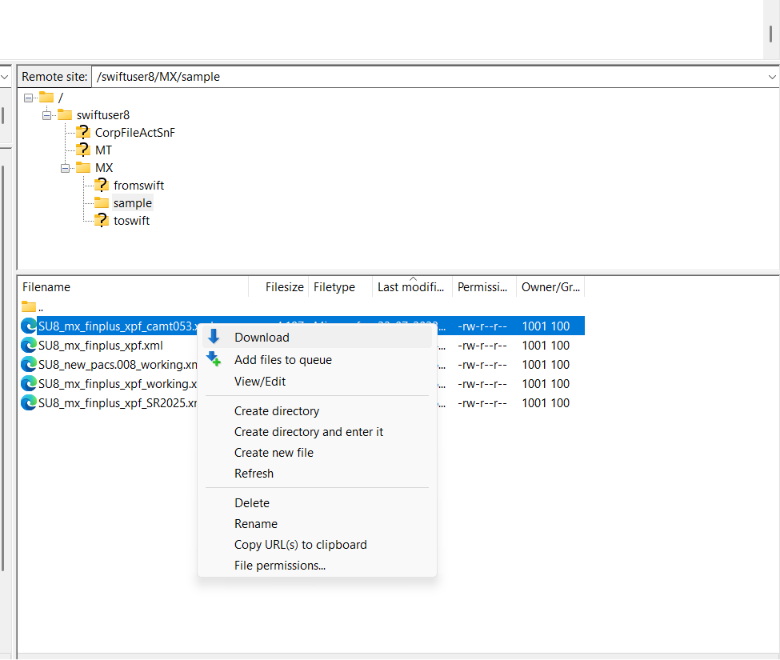
Expected Result
Sample message is downloaded successfully.
Step 4 – Update the Message Reference
Before uploading the test message, modify the message to ensure it contains a unique transaction reference.
For example:
- MT messages: Update Field 20 (Transaction Reference Number) with a unique value.
- MX messages: Update the User Reference (or applicable unique reference field) with a unique value.
- For other message types, update the appropriate unique reference field as applicable.
This ensures each test message is unique and prevents duplicate message processing.
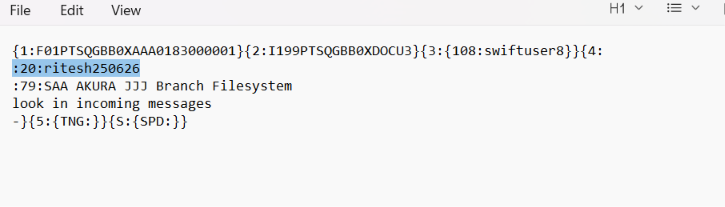
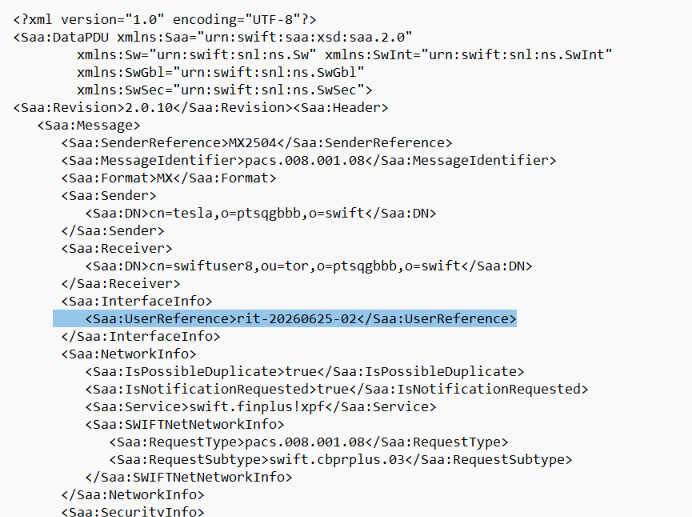
Expected Result
The message contains a unique reference and is ready for upload.
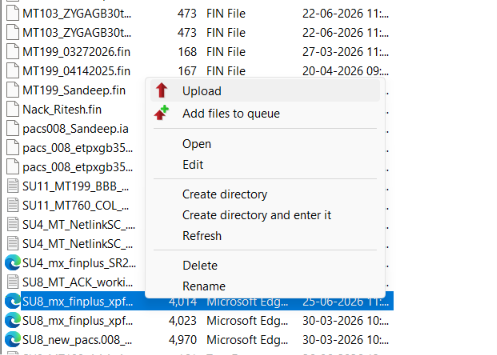
Step 5 – Upload the Test Message
Navigate to the toswift directory.
Upload the downloaded sample message.
Expected Result
The message is uploaded successfully without any transfer errors.
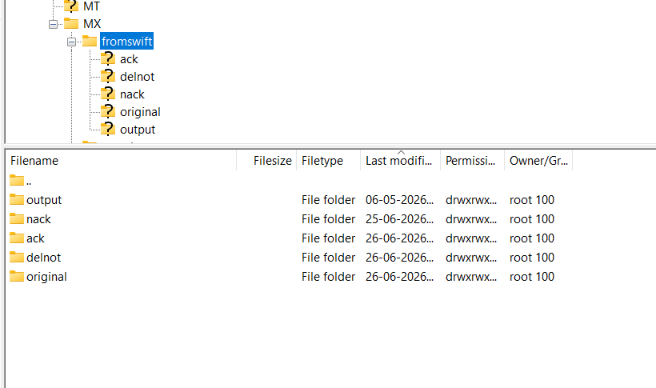
Step 6 – Validate Message Processing
Navigate to the fromswift directory.
Verify that the following files are generated:
- ACK – Acknowledgement received.
- DELNOT – Delivery notification generated.
- Original – Original message stored.
- Output – Processed message generated.
Expected Result
All expected files are generated successfully.
Method 2 – Using FileStash
Step 1 – Access FileStash
FileStash provides browser-based SFTP access without requiring any client software installation.
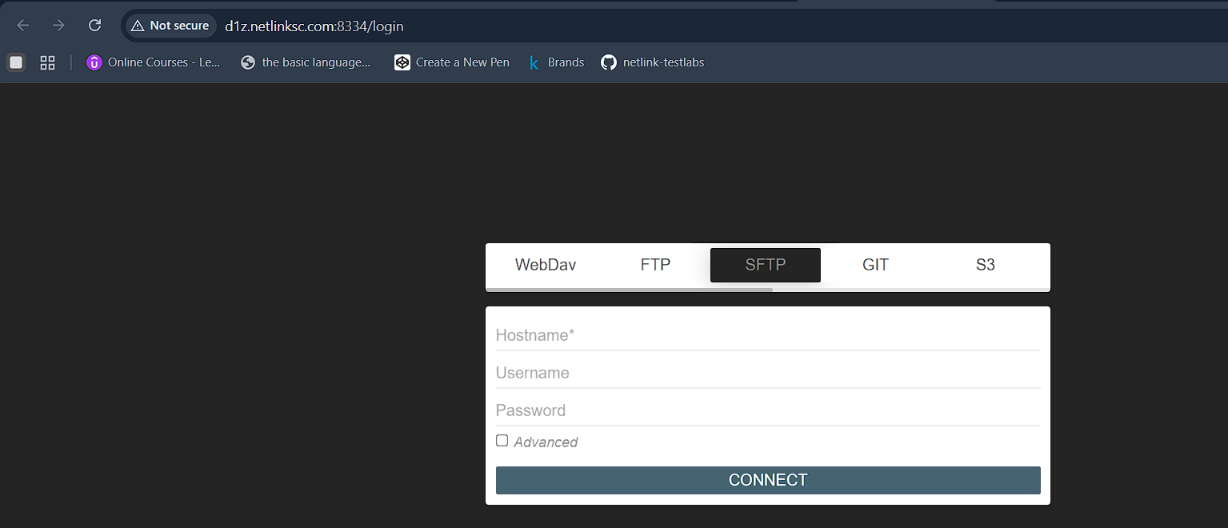
Open a supported web browser (Google Chrome or Microsoft Edge) and navigate to:
URL: http://d1z.netlinksc.com:8334/login
Expected Result
The FileStash login page is displayed successfully.
Step 2 – Configure the SFTP Connection
Enter the following connection details:
| Parameter | Value |
|---|---|
| Connection Type | SFTP |
| Host / IP Address | 109.68.167.226 |
| Username | swiftuserX (e.g., swiftuser5, swiftuser8, swiftuser9) |
| Password | Assigned password |
| Port | 8221 |
Click Connect.
Expected Result
Connection to the selected SWIFT User (SU) is established successfully.
Continue the Validation
After successfully establishing the FileStash connection, follow the same procedure as described in Method 1 – Using FileZilla, starting from Step 3 – Download a Sample Message.
Acceptance Criteria:
The SWIFT User STP Flow Check is considered Passed when:
Connection Validation
- Connection to the selected SWIFT User is established successfully.
Message Upload Validation
- Test message is uploaded successfully to the toswift directory.
Message Processing Validation
The fromswift directory contains:
- ACK
- DELNOT
- Original
- Output
All expected files are generated successfully.